
Video transcripts
Transcripts are a written version of the dialogue and important background sounds in a video. They make the content accessible to people who can't listen to it.
In This Article
What is a transcript?
A transcript provides a text version of the content in a video file.
Primary audience
People who are deaf, are hard of hearing, or prefer to read a written transcript instead of listening to the audio. For people who are both deaf and blind and who use a braille reader, descriptive transcripts are the only way to experience video content.
Experience
In the video player, tap Transcript to open the transcript in a new screen. You can read it while you listen to the video, or instead of listening.
For more on the importance of including transcripts for accessibility, see W3C: Transcripts.
Transcript tips
- Break long blocks of text into short paragraphs of two or three sentences.
- Transcribe all speech exactly as it is spoken.
- Don't correct the speaker's language. Don't paraphrase, add extra detail, or add abbreviations. You can remove filler words (like “um”) if they’re distracting.
- Use rich text formatting to indicate spoken emphasis or different speakers.
- Write each speaker's name in bold, followed by a colon and paragraph break.
- Check the spelling, and check the names of key people, places, and artworks.
- Look for and correct errors, like extra spaces between sentences, incorrect punctuation, and titles of artworks that aren't in italics.
- When you upload your transcript to the CMS, only include timestamps if they're helpful.
- Timestamps can add unnecessary clutter and can be distracting for the reader. If you want to include timestamps, they usually don't need to be very precise, and they don't need to include end times.
- In Rev, "Timestamping" is an optional add-on to your order. You might generate a file with timestamps for other purposes, like internal reviews or script editing. In that case, uncheck "include timestamps" when you download the file to use in Bloomberg Connects.
- Do not include links.
- Links interfere with Google Translate and cause errors in the CMS.
- Rev transcripts with timestamps might also include links that take you directly to a portion of the transcript in your workspace. Either manually delete these links, or follow Rev's guidance for downloading a transcript without links.
Videos without speech
Transcripts are useful for videos without speech or dialogue. When you note relevant non-speech sounds, like music or nature sounds, more visitors can enjoy all of your content.
In a transcript, put non-speech sounds in brackets to separate them from speech. For example, "[background laughter]...[birds chirping]...[car starting]...."
You can indicate the presence of music by referencing the title of the piece or by providing a brief description. For example, "[Song: Beethoven's Fifth Symphony]" or "[Soft classical music coming through an open window]".
Create video transcripts with Rev
Bloomberg Connects has partnered with Rev to offer video transcription services at no cost to you.
Note: Rev provides human transcripts only for English. If your file includes dialogue in another language, you can order AI transcripts instead; just make sure to review the file for accuracy! Reach out to your relationship manager with any questions.
Steps
-
Log in to the Bloomberg Connects Rev.com workspace using the instructions provided by your relationship manager during onboarding.
Can’t find the instructions? Reach out at support@bloombergconnects.org.
-
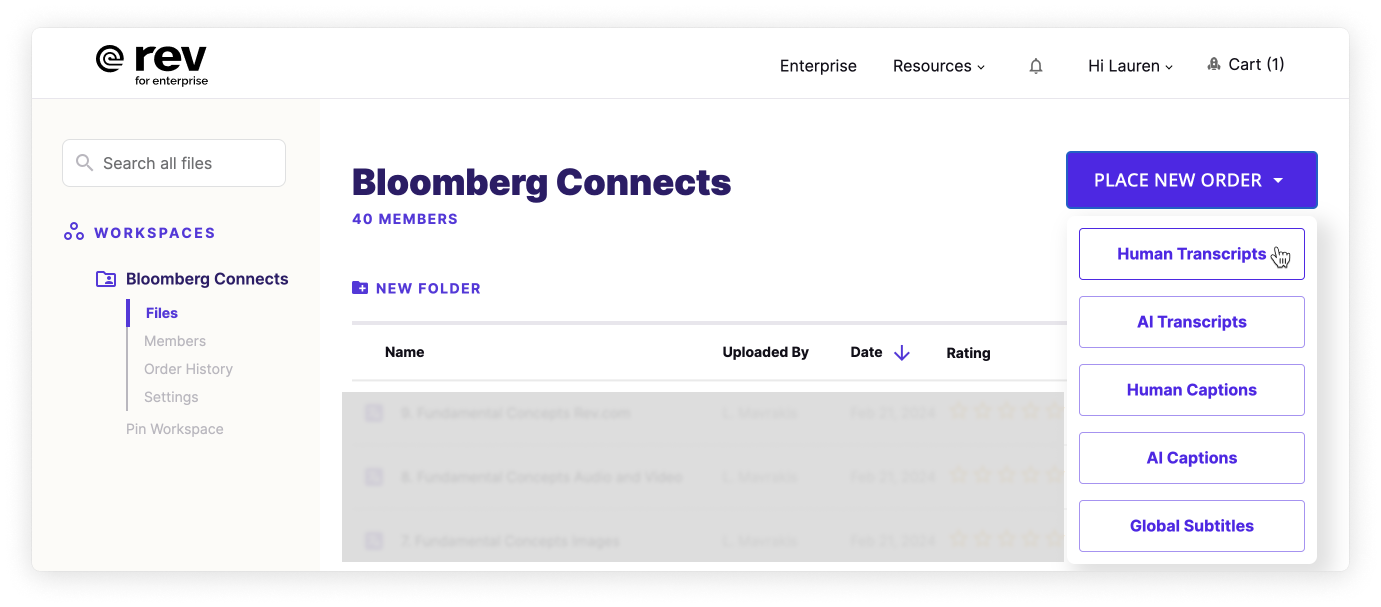
Click Place New Order, then select Human Transcripts.
-
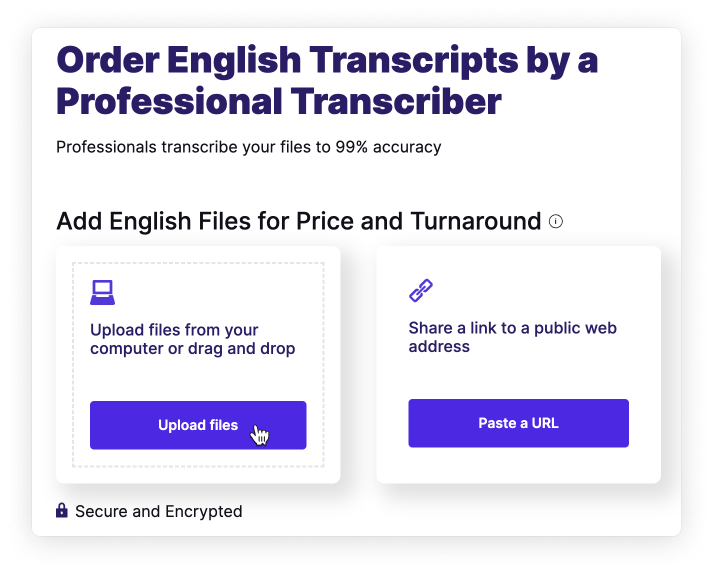
On the order page, select Upload files from your computer or drag and drop.
-
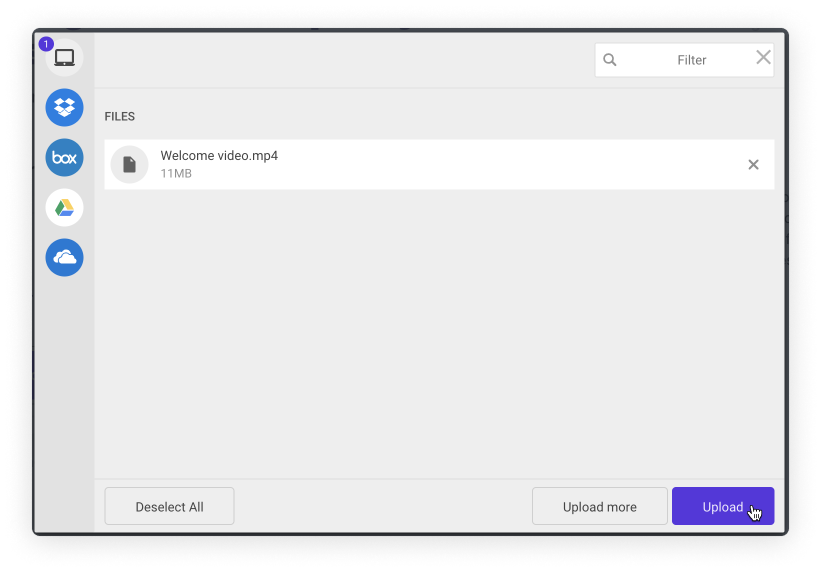
Upload or drag in your files, then click Upload.
The order summary page appears.
-
Review the order and select any add-ons (for example, Rush My Order for expedited delivery). Then click Checkout.

The payment details screen appears.
-
Make sure your order is billed to the Bloomberg Connects account, then click Order Transcript.
The billing address fills in automatically. However, if you are prompted to add the address manually, use: Bloomberg Philanthropies Support, 25 E 78th St, New York, NY 10075, United States. Save the address for use in future orders.

- When your transcript is complete, you’ll receive an update from Rev in your email. After that, you can:
- Open the transcript in Rev to double-check or edit the output
- Copy your transcript from Rev and paste it into the CMS


For more help using Rev, visit their help center.