
Generate AI alt text
Alt text enriches the experience that non-sighted visitors have with your guide. The better the alt text, the better the experience. Writing good alt text often feels like a specialized skill with a steep learning curve. When hundreds of images need alt text, the task can feel overwhelming.
In the Bloomberg Connects CMS, you can use an AI tool to generate alt text. The AI model was engineered by experts in the fields of digital accessibility, art, and culture. Its suggestions are fully customizable for when you need to make edits.
Note: You will always need to manually approve the AI-generated alt text suggestions. You can write your own alt text if you prefer.
AI model and basic assumptions
Using a large language model, we apply a custom prompt (with expert examples) to guide the model towards alt text that is clear, concise, accurate, objective, and relevant. Then we tune the settings and parameters to further improve the text.
Alt text is extremely subjective. Even so, several rounds of testing show that our custom model is performing well. During testing, a panel of accessibility experts found that the AI-generated alt text was generally better than alt text written by non-experts.
You can read more about how the model was developed and tested in this article.
Generate new alt text for images
Steps:
-
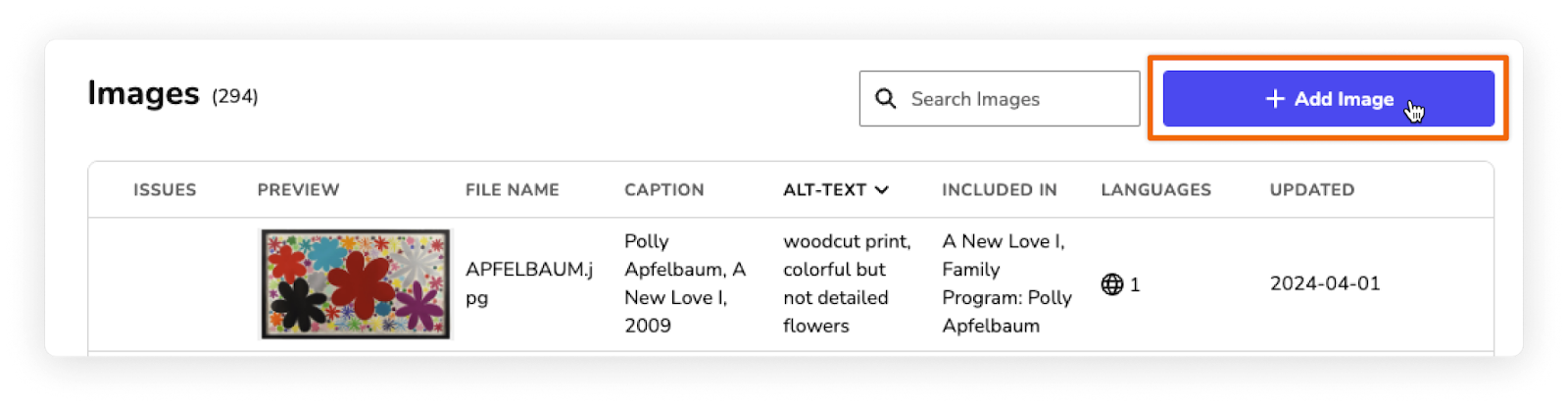
On the Images page of the CMS, at the top of your screen, click Add Image.
-
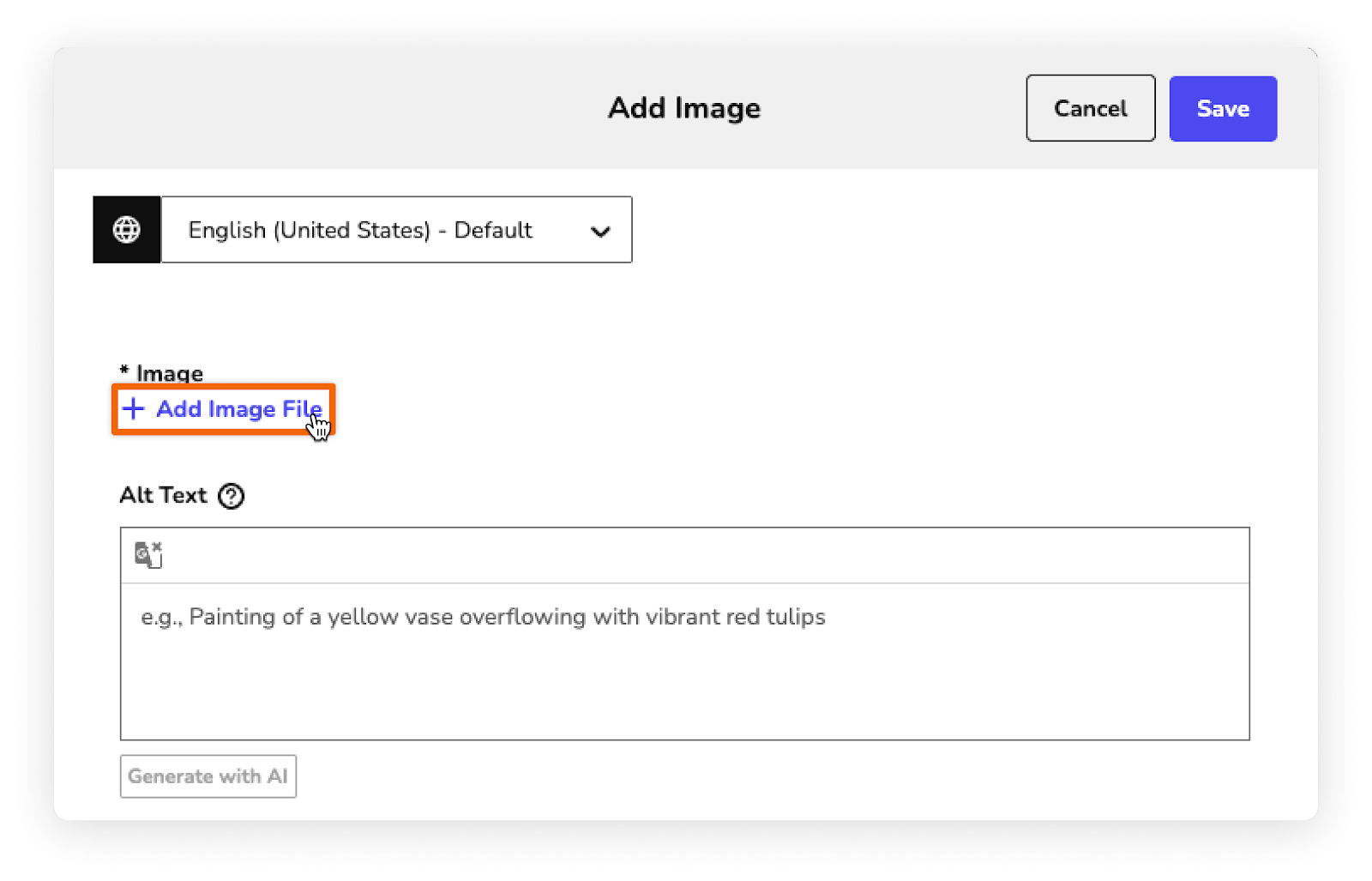
In the Add Image form that appears, click Add Image File, then select your image and click Open.
-
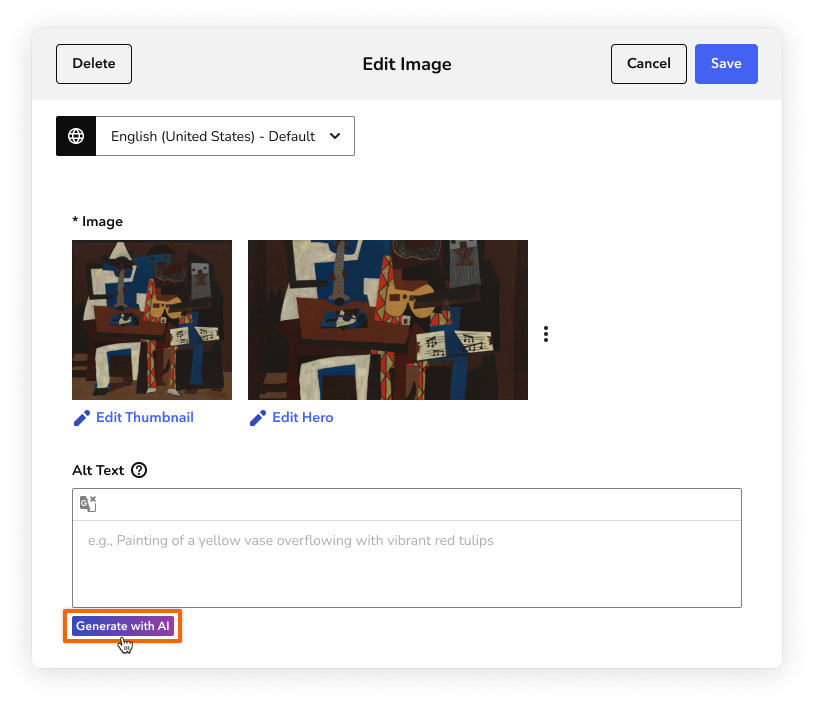
Once your image is uploaded, under the Alt Text field, click Generate with AI. The model generates a suggestion. This takes about 10 seconds.
-
To add the suggestion into the Alt Text field, click Accept.
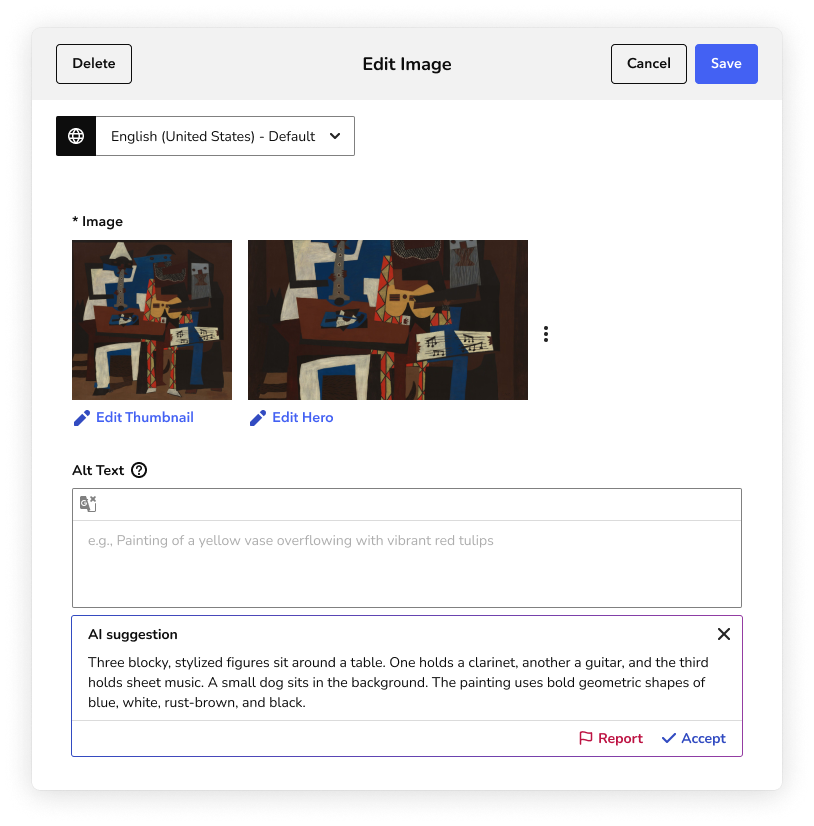
The text is completely customizable: you can edit or delete whatever you want.
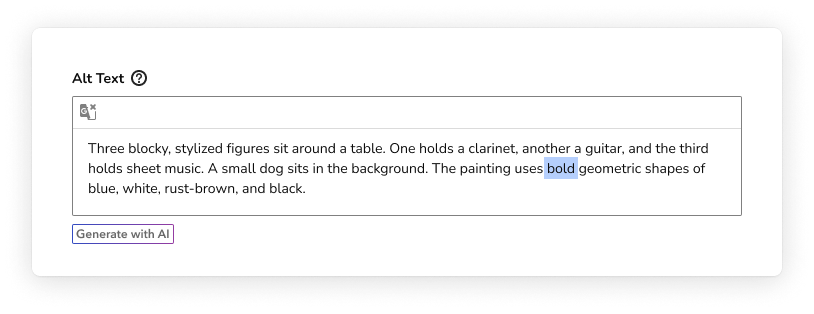
You can click Generate with AI again to generate a new suggestion.
-
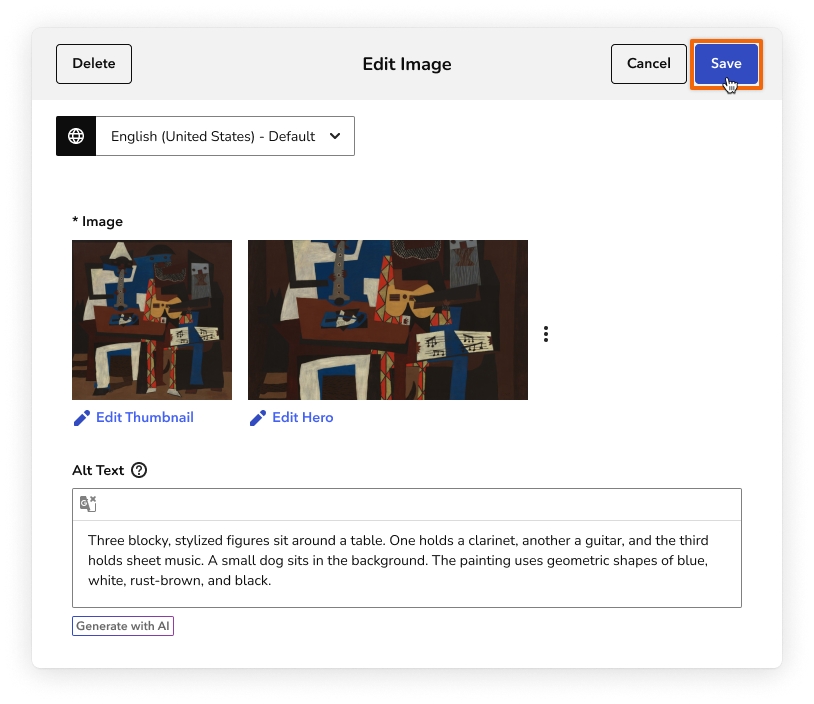
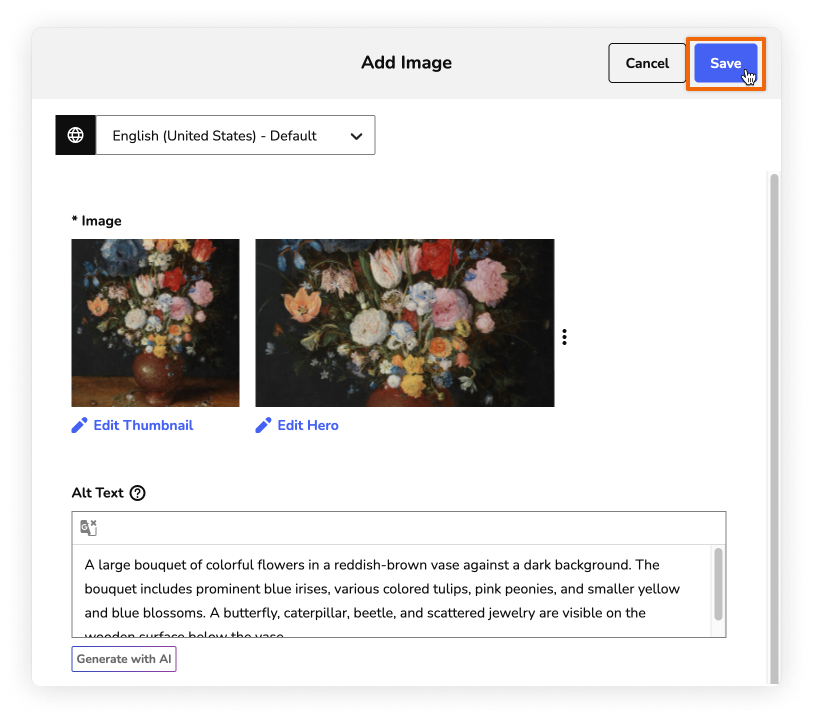
At the top of the image form, click Save.
Replacing old alt text
If an image already has alt text, you can compare it to an AI suggestion. Follow these steps to replace old alt text with the AI suggestion.
Steps:
-
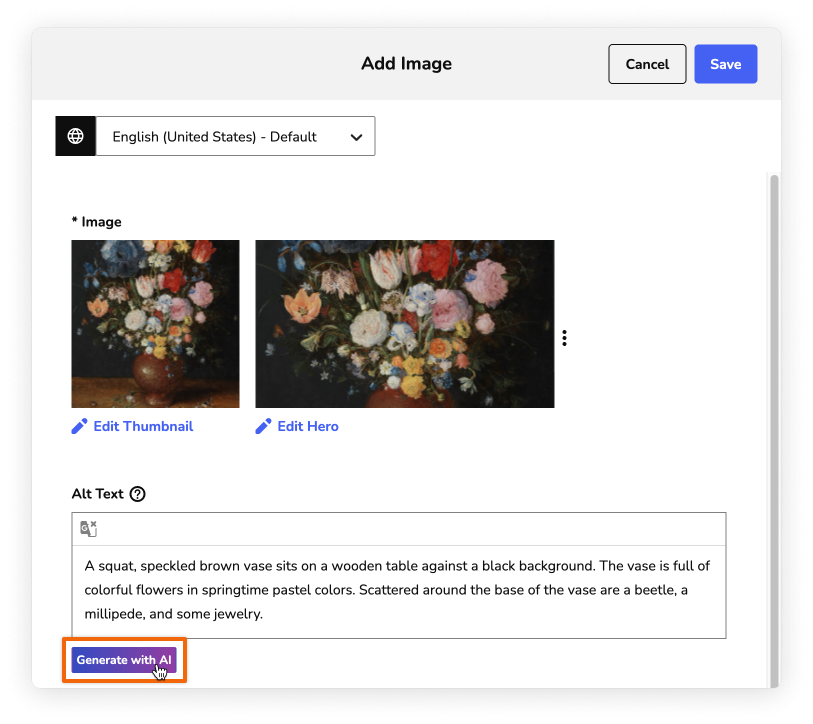
In the Edit Image form, under the Alt Text field, click Generate with AI. The model generates a suggestion. This takes about 10 seconds.
-
To add the suggestion into the Alt Text field, and replace any existing text, click Accept and Replace.
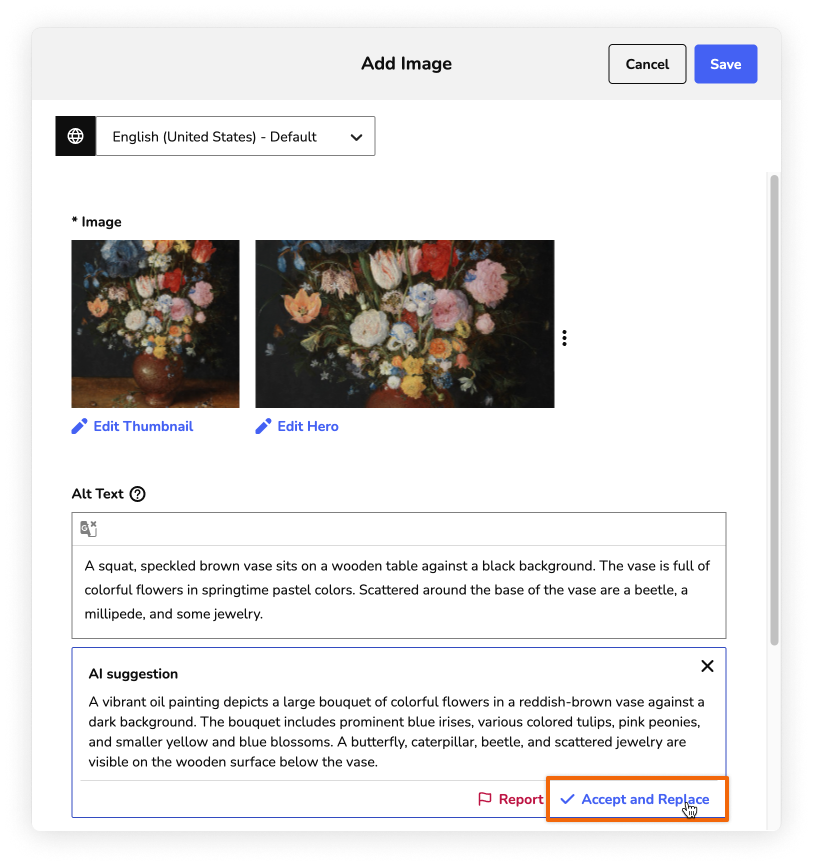
Once accepted, the suggestion replaces your existing alt text. The text is completely customizable: you can edit or delete whatever you want.
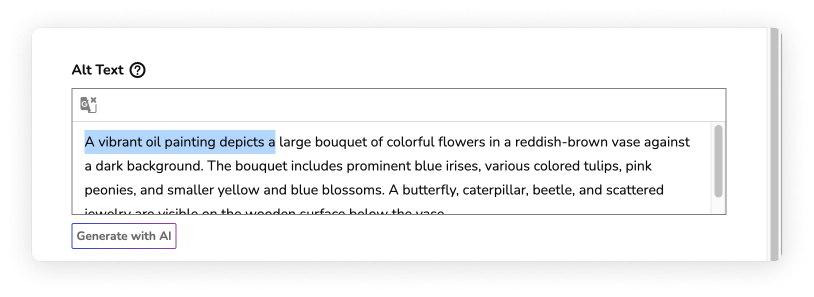
You can click Generate with AI again to generate a new suggestion.
-
At the top of the image form, click Save.
Available actions
If you generate AI alt text, you must either accept the text, ignore it, or report it to the Connects team.
Accept (or Accept and Replace): Add the suggested text into the Alt Text field, replacing existing text (if any exists).

Once accepted, you can edit or delete the text.
Close: Ignore the AI suggestion and close the text window.

Report: Send us feedback on text that is harmful, offensive, or otherwise problematic.

For more on alt text, including high-level tips and trusted resources, see Image alt text in the Help Center.