
Create AI audio from a script
The AI audio tools in the CMS offer a quick way to produce high-quality audio, especially for teams that might not have the resources to record and edit their own audio, or might need help supplementing their existing resources.
Before you get started, make sure to review the Best practices for creating AI audio.
In This Article
Generate audio from a script
-
On the Audio page of the CMS, click the +Add Audio button.
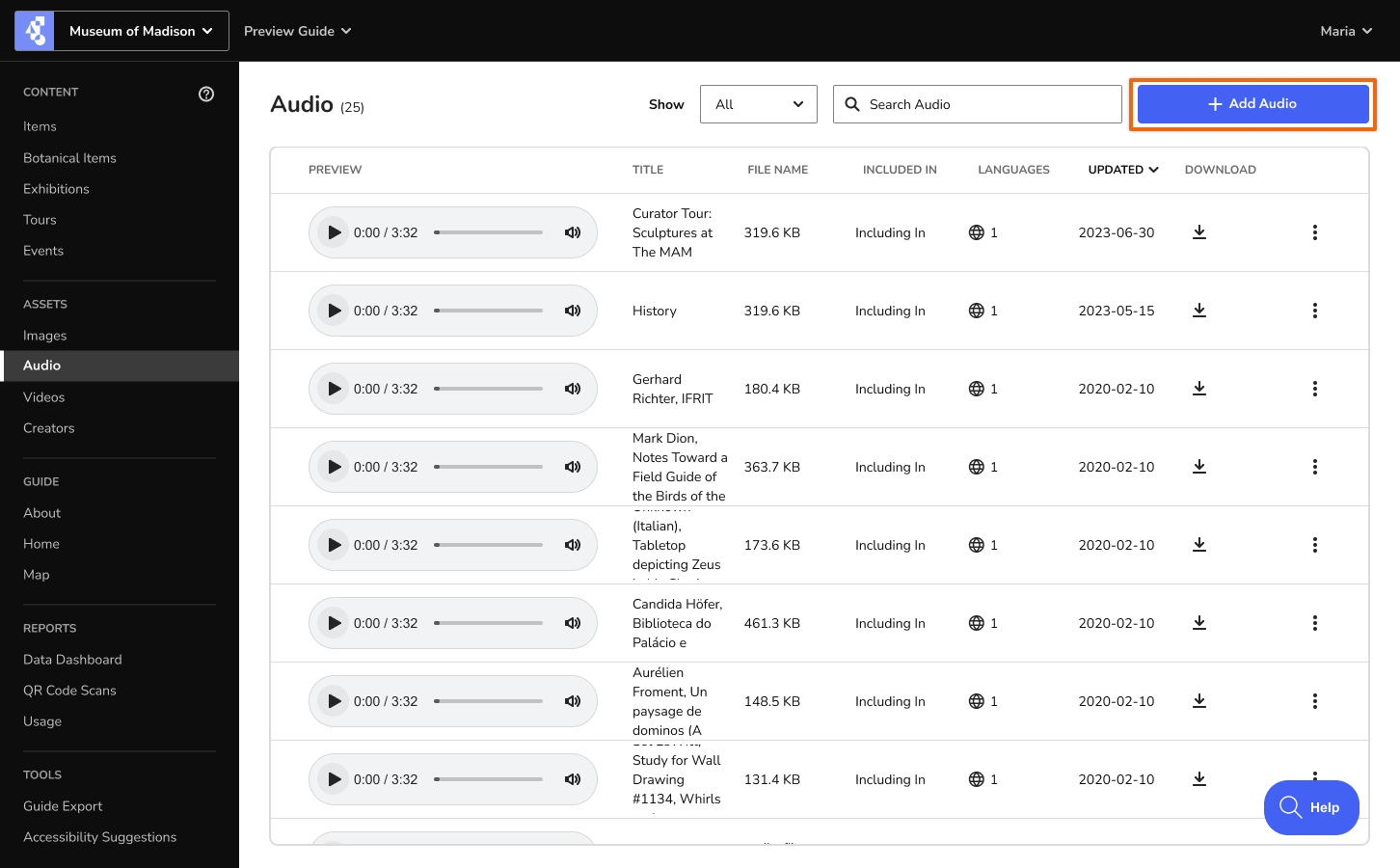
-
Click Create AI Audio to open the AI audio tools. These tools help you create an audio file from your script.
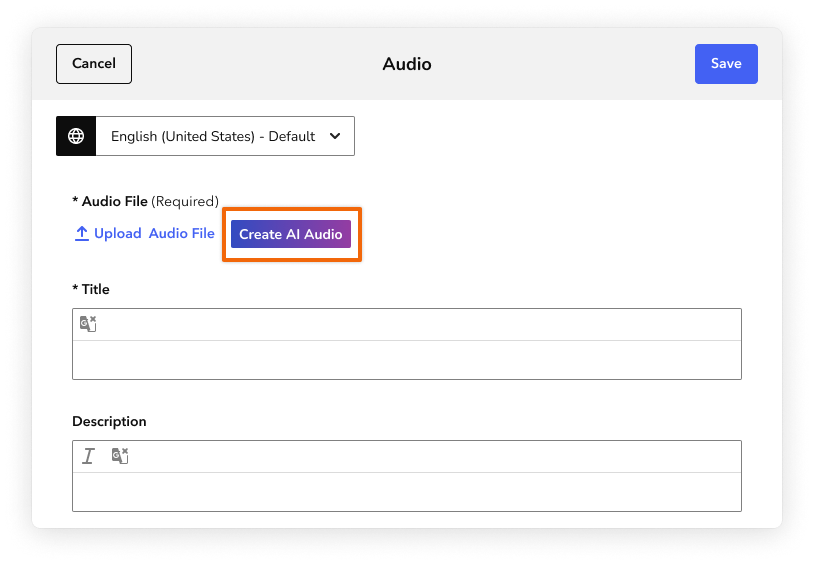
- Click Play Voice to preview the voice options, then add your script. For more information on translating the voices, see Accents and multilingual audio.
-
When you’re ready, click Generate AI Audio. Depending on the length of your script, it may take up to 2 minutes to create the audio file.
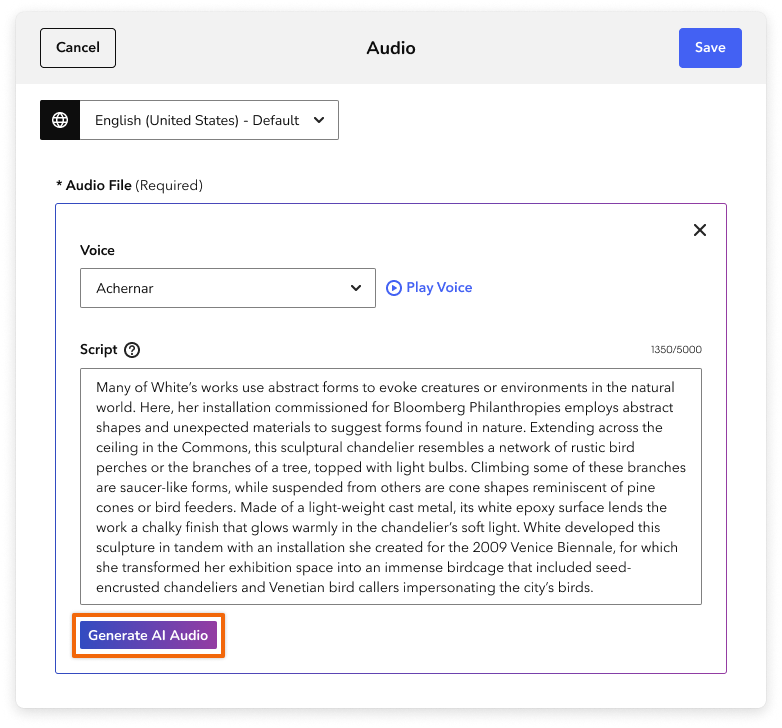
-
To attach the file to your audio asset, click Accept. You can also close the AI audio window to discard your unsaved changes.
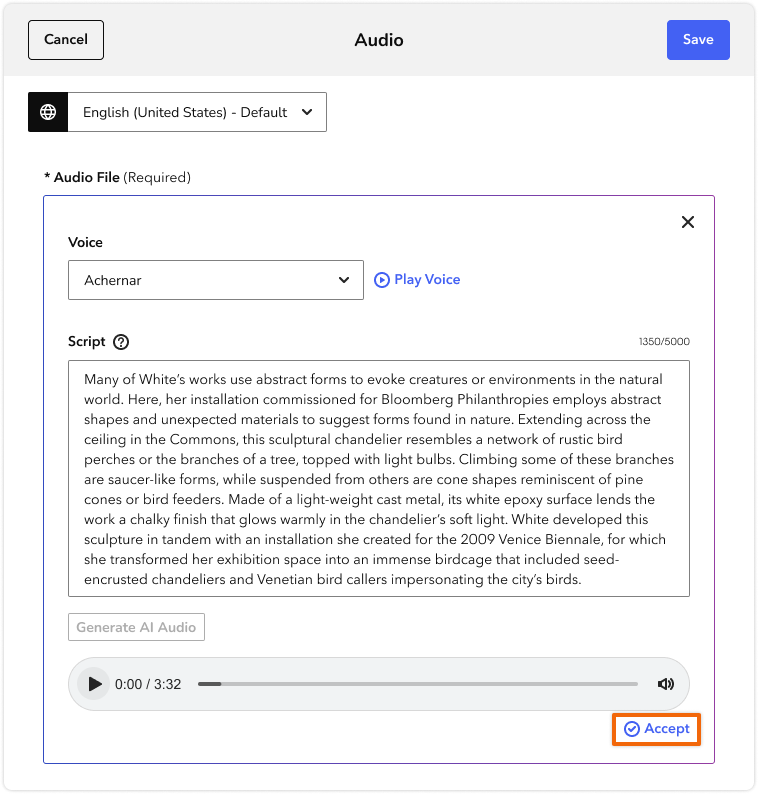
-
At the top of the Audio form, click Save.
Note: All audio files should have a transcript.
Edit AI audio files
You can open any AI audio file to adjust its script or voice. After you make changes, click Generate AI Audio again to create a new file.
Punctuation and natural pauses
Listen carefully to the full audio file, especially to the pace of the reading and the pronunciation of names. For most languages, you can use standard punctuation to add pauses that make the recording sound more natural.
- Commas (,) add the shortest pauses.
- Hyphens and dashes (—) add brief pauses.
- Periods (.) add full pauses, and affect how the next sentence is read.
- Ellipses (...) add the longest pauses.
Phonetic spelling and pronunciation
If you find that the AI audio is mispronouncing names or places, you can try spelling the word phonetically within your script (for example, Saoirse can be typed as “Sare-shuh”).
Script recommendations
It’s important that your scripts sound natural and engaging. These are the main points to keep in mind.
Write scripts like a conversation
- Use contractions (for example, use “don’t” instead of “do not").
- Use punctuation for effect, rather than for perfect grammar.
- Avoid lengthy and complicated sentences, since the software might put emphasis in the wrong place.
Read out loud and listen carefully
- Read your script out loud to find any awkward phrases or pauses. Words that look great on the page don’t always sound right out loud.
- When you’re reviewing audio, listen carefully and put yourself in your visitors’ shoes. Does the speech flow well? Is the tone appropriate for the subject?
- Experiment with adjustments at any points in your script that don’t sound natural.
- If you don’t want to change the script itself, you can try selecting a different voice. We recommend limiting your audio to three voices across your guide. Too many different voices may disrupt your visitors’ sense of consistency and predictability.
You can read every recommendation in our complete guide to creating high quality audio.
Accents and multilingual audio
To create an AI audio file in a new language, click the Language menu at the top of the Audio form. Within that menu, select a new language. Add your script in the language you selected.
To create audio in our supported English accents, follow those same steps to select either English (US) or English (UK).
Note: Make sure that your new language is also enabled in your Manual Translations settings on the About page of the CMS.
AI audio and transcript generation are available for certain guide languages. Use the table below to check which features are available for your language.
| Language | Generate AI audio | Generate AI transcript |
|---|---|---|
| Arabic | Yes | Yes |
| Armenian | No | Yes |
| Basque | No | Yes |
| Bulgarian | Yes | Yes |
| Bengali (Bangladesh) | No | Yes |
| Burmese | No | Yes |
| Bosnian | No | No |
| Cape Verdean Creole | No | No |
| Catalan | No | Yes |
| Chinese (Cantonese) | No | No |
| Chinese (Mandarin) | No | No |
| Cornish | No | No |
| Czech | Yes | Yes |
| Danish | Yes | Yes |
| Dutch | Yes | Yes |
| Dzongkha | No | No |
| English (New Zealand) | No | No |
| English (UK) | Yes | Yes |
| English (US) | Yes | Yes |
| Filipino | No | Yes |
| Finnish | Yes | Yes |
| French | Yes | Yes |
| German | Yes | Yes |
| Greek | Yes | Yes |
| Haitian Creole | No | No |
| Hawaiian | No | No |
| Hebrew | Yes | Yes |
| Hindi | Yes | Yes |
| Hmong | No | No |
| Hungarian | Yes | Yes |
| Icelandic | No | Yes |
| Inuktitut | No | No |
| Irish | No | No |
| Italian | Yes | Yes |
| Jamaican Patois | No | No |
| Japanese | Yes | Yes |
| Kalaallisut (Greenlandic) | No | No |
| Kannada | Yes | Yes |
| Korean | Yes | Yes |
| Lithuanian | Yes | Yes |
| Luxembourgish | No | Yes |
| Malay | No | Yes |
| Malay (Arabic script) | No | No |
| Maltese | No | Yes |
| Māori | No | Yes |
| Nahuatl | No | No |
| Nepali | No | Yes |
| Northern Sámi | No | No |
| Norwegian | Yes | Yes |
| Polish | Yes | Yes |
| Portuguese (Brazil) | Yes | Yes |
| Portuguese (Portugal) | No | Yes |
| Romanian | Yes | Yes |
| Russian | Yes | Yes |
| Scottish Gaelic | No | No |
| Serbian | Yes | Yes |
| Slovak | Yes | Yes |
| Somali | No | No |
| Spanish (Latin America) | Yes | Yes |
| Spanish (Spain) | Yes | Yes |
| Swedish | Yes | Yes |
| Tagalog | No | Yes |
| Tamil | Yes | Yes |
| Thai | Yes | Yes |
| Turkish | Yes | Yes |
| Ukrainian | Yes | Yes |
| Urdu | Yes | Yes |
| Vietnamese | Yes | Yes |
| Welsh | No | Yes |
| Yucatec Maya | No | No |
Technical limitations
The CMS AI audio tools are designed to help teams create engaging content despite limited production resources. Our tools do not have the following advanced features:
- Pronunciation glossaries
- Audio with multiple speakers
- Individual voice cloning
- Control over inflection and tone