
Audio transcripts
Transcripts provide a written version of the dialogue and important ambient sounds in an audio clip, so the content can be accessible to a wider audience of people who can't listen.
What is a transcript?
A transcript provides a text version of the content in an audio file.
Primary audience
People who are deaf, are hard of hearing, or prefer to read a written transcript instead of listening to the audio.
Experience
In the audio player, tap Transcript to read the transcript in a new screen in addition to or instead of listening to the audio.
For more on the importance of including transcripts for accessibility, see W3C: Transcripts.
Transcript tips
- Break long chunks of text into short paragraphs of 2-3 sentences.
- Transcribe all speech verbatim.
- Don’t correct the speaker's use of language, paraphrase, add extra detail, or introduce abbreviations. You can cut excessive interjections (like “um”) if they’re distracting.
- Use rich text formatting to indicate spoken emphasis or different speakers.
- Write each speaker's name in bold, followed by a colon and paragraph break.
- Spell-check and check names of key people, places, artworks, etc.
- Look for and correct grammatical errors like extra spaces between sentences, incorrect or missing punctuation, and italicizing titles of artworks.
- When you upload your transcript to the CMS, only include timestamps if they're helpful.
- Timestamps can add unnecessary clutter and can be distracting for the reader. If you do want to include timestamps, they usually do not need to be very granular and do not need to include end times.
- Do not include links.
- Links interfere with Google Translate and cause errors in the CMS.
- If you generate your transcript through Rev, follow Rev's guidance for downloading a transcript without links.
Audio without speech
Transcripts are useful for audio files that don't include speech or dialog. Noting relevant non-speech sounds like music, nature sounds, or other ambient information can help more visitors enjoy the breadth of your content.
In a transcript, non-speech sounds can be indicated in brackets to distinguish them from speech. For example, "[background laughter]…[birds chirping]…[car starting]…."
You can indicate the presence of music by referencing the title of the piece or by providing a brief description. For example, "[Song: Beethoven's Fifth Symphony]" or "[Soft classical music coming through an open window]".
Generate AI transcripts
The AI audio transcription tool in the CMS helps you generate a first draft of your audio transcript in minutes. This tool can generate transcripts in 35+ languages.
Note: If the AI audio transcription tool does not meet your organization's needs, let your relationship manager know. They can help you edit the AI draft or support you in generating a transcript with other tools, like Rev.com. Your feedback helps us make our tools better.
Steps
-
In any audio asset, click Generate AI Transcript.
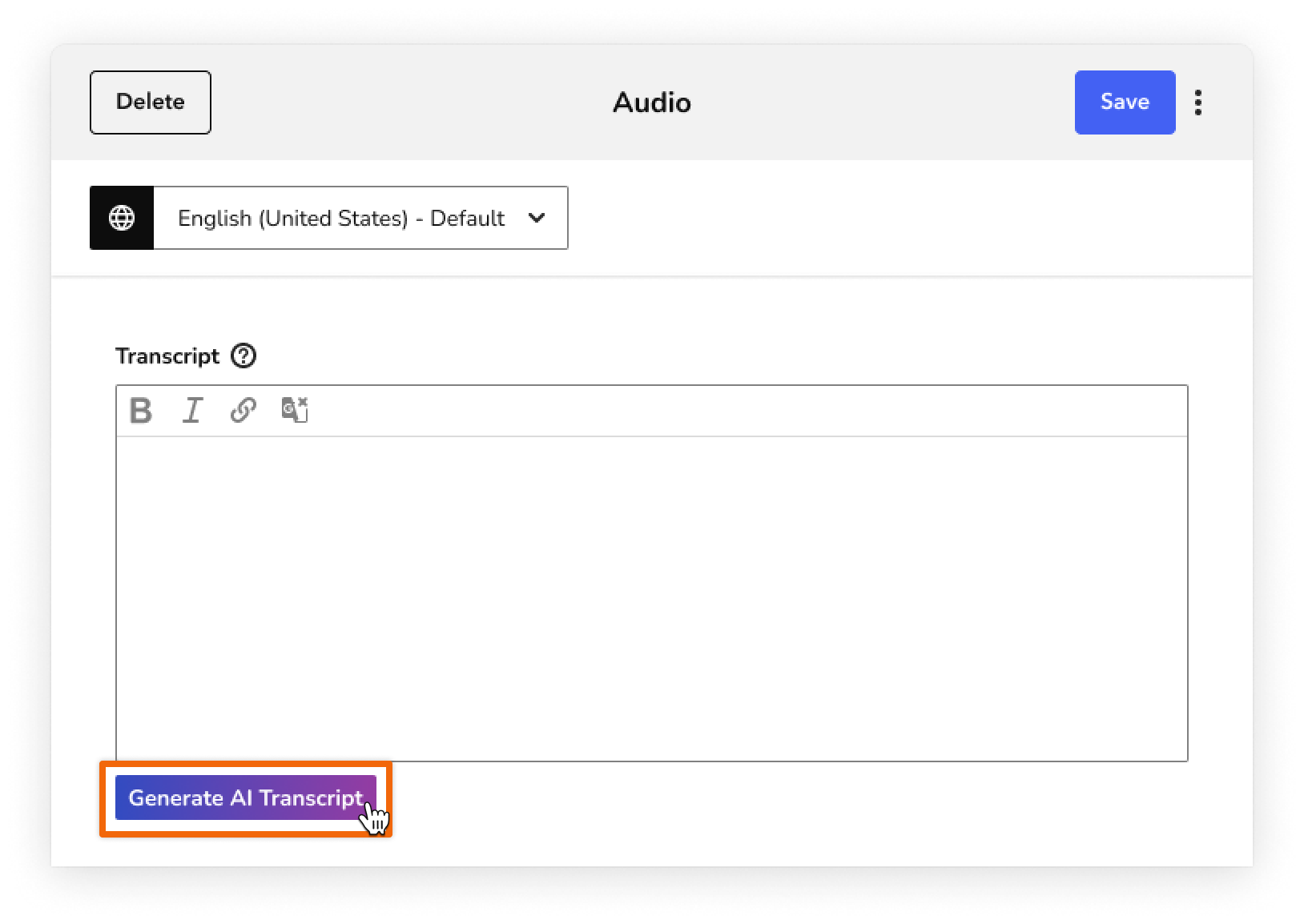
- After a few seconds, you can read and review the transcript.
-
Once you're happy with the result, click Accept. Then review and edit the transcript.
Note: If you already have text in the Transcript field, you can click Accept and Replace to overwrite that text with the AI generated text.
- Save the audio asset.
Because this content is generated by AI software, it’s crucial to review the transcription before you publish it to visitors. Here are some things to look for:
- The spelling of names, places, and other proper nouns. Transcription software sometimes misspells names, or mishears a name as two or more different words.
- Paragraph spacing. Remember to follow all of the transcript tips above, including breaking the transcription into several small paragraphs, rather than big blocks of text.
- Watch out for homophones, like “cymbal” and “symbol.”
- Uh, um, like. Keep an eye out for filler words and pauses in your AI transcript.