
Manage content visibility (legacy)
As of February 5, 2026, this article describes a legacy workflow. For the most up-to-date information, start here: Manage drafts and published content.
Visitors can discover all visible content in the live version of your guide.
If there's content in the live version of your guide that you don't want visitors to see, hide that content to remove it from the app.
Note: To prepare new content, or to make changes to existing content, without exposing your in-progress material to visitors, we recommend that you create a draft version of your guide. Draft content is always hidden from visitors until you publish it.
Hide content
To hide content (e.g., an Exhibition), on the content grid, click the more actions menu (⫶) and select the "hide" option (e.g., Hide Exhibition).
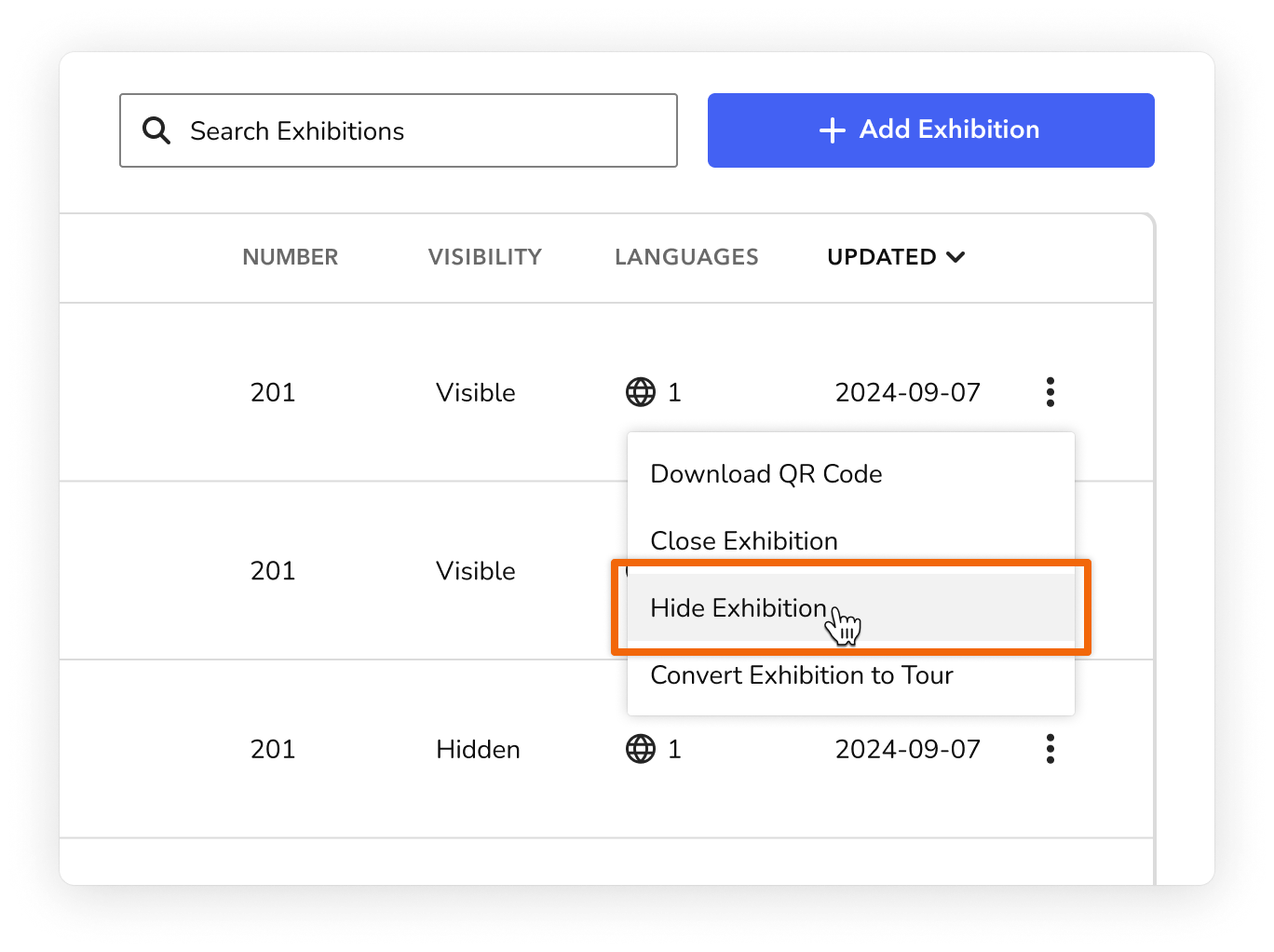
The content is hidden.
You can make content visible again if needed. Just select the "make visible" option (e.g., Make Exhibition Visible).
Visible vs. hidden content
Visible
By default, all content is visible. Visitors can see content in your guide when you make it discoverable through any of the following:
- A lookup number or QR code,
- The Home screen,
- The map,
- An Item's parent Exhibition/Tour, OR
- Related content
Hidden
Making content hidden removes it from your guide. You might want to hide content permanently (e.g., after an Exhibition, Event, or Tour ends) or temporarily, when you need to make a quick edit behind the scenes.
For visitors, hidden content:
- Does not appear on your guide's home screen
- Does not appear on the map
- Can not be found via lookup number
- Can be made visible