
Manage drafts and published content
This article describes how you can save drafts of your content while you work, then publish content when it's ready for visitors.
In This Article
Overview
Each piece of content in your guide—Items, Exhibitions, Tours, and Events—exists in one of two states: draft or published.
- Draft content is never available to visitors. You can edit your material, link pieces of content together, and prepare your home screen and map without worrying that your visitors will see unfinished content. You can preview how your changes will look from the CMS or app. When a piece of content is ready for visitors, you can publish it.
- Published content is available in the Bloomberg Connects guide and can be enjoyed by visitors.
Managing your guide's visibility at the content level offers the peace of mind and flexibility you need to keep your guide fresh in a dynamic environment.
Since you don't need to prepare a whole batch of updates to go out at once, you can work nimbly and flexibly, whether you're a team of one or twenty. For example, you can prepare for an upcoming show while your colleague updates the gallery images to your evergreen content, or seamlessly publish a fix for a typo you come across while creating a new audio tour.
Save content as a draft
You can save content as a draft to work on it behind the scenes.
To save your content as a draft, click Save Draft at the top of the form.
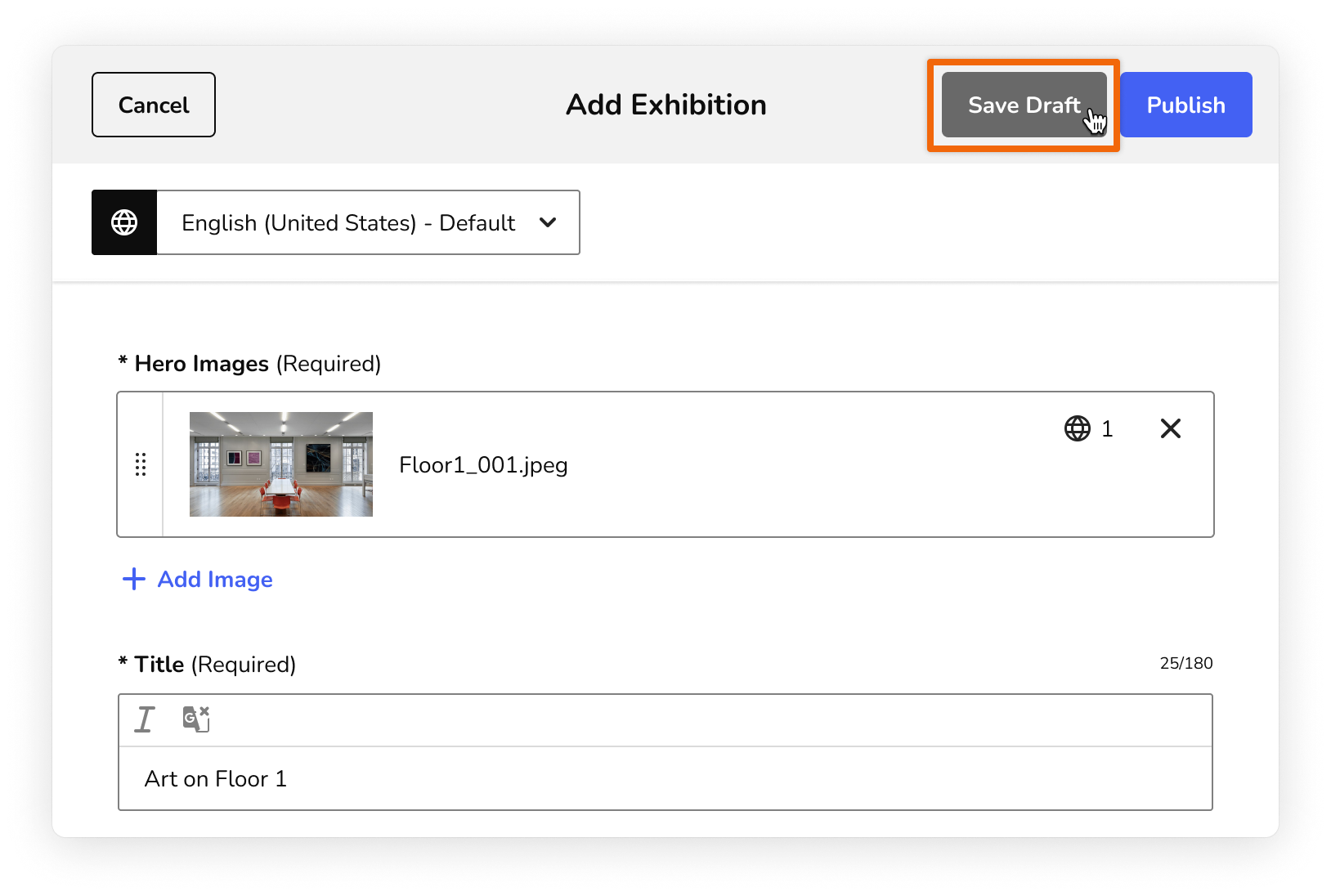
The content saves. Throughout the CMS, a "draft" label appears below the content's title, so you know that visitors can't see it. This label also appears at the top of the content form. You can add the draft content to your home screen or map (but it won't appear to visitors until the content is published).

You can preview draft content to check your work. When you're ready to make the content available to visitors, publish it.
Publish content
You can publish content to make it available to visitors.
To publish one piece of content, click Publish at the top of the form.

To publish multiple pieces of content, select every draft you want to publish, and then click Publish in the bulk actions menu.

The content is published. Visitors can find it in your guide.
If you need to update the content, unpublish it to make your changes.
Note: During onboarding, your guide is not yet live in the Bloomberg Connects app, so published content remains hidden from visitors. For more, see the Content drafts during onboarding section of this article.
Unpublish content
You can unpublish content to remove it from your guide. Unpublishing content can be temporary (e.g., if you need to update previously published material) or permanent (e.g., if you need to take down old material).
There are several ways to unpublish content:
-
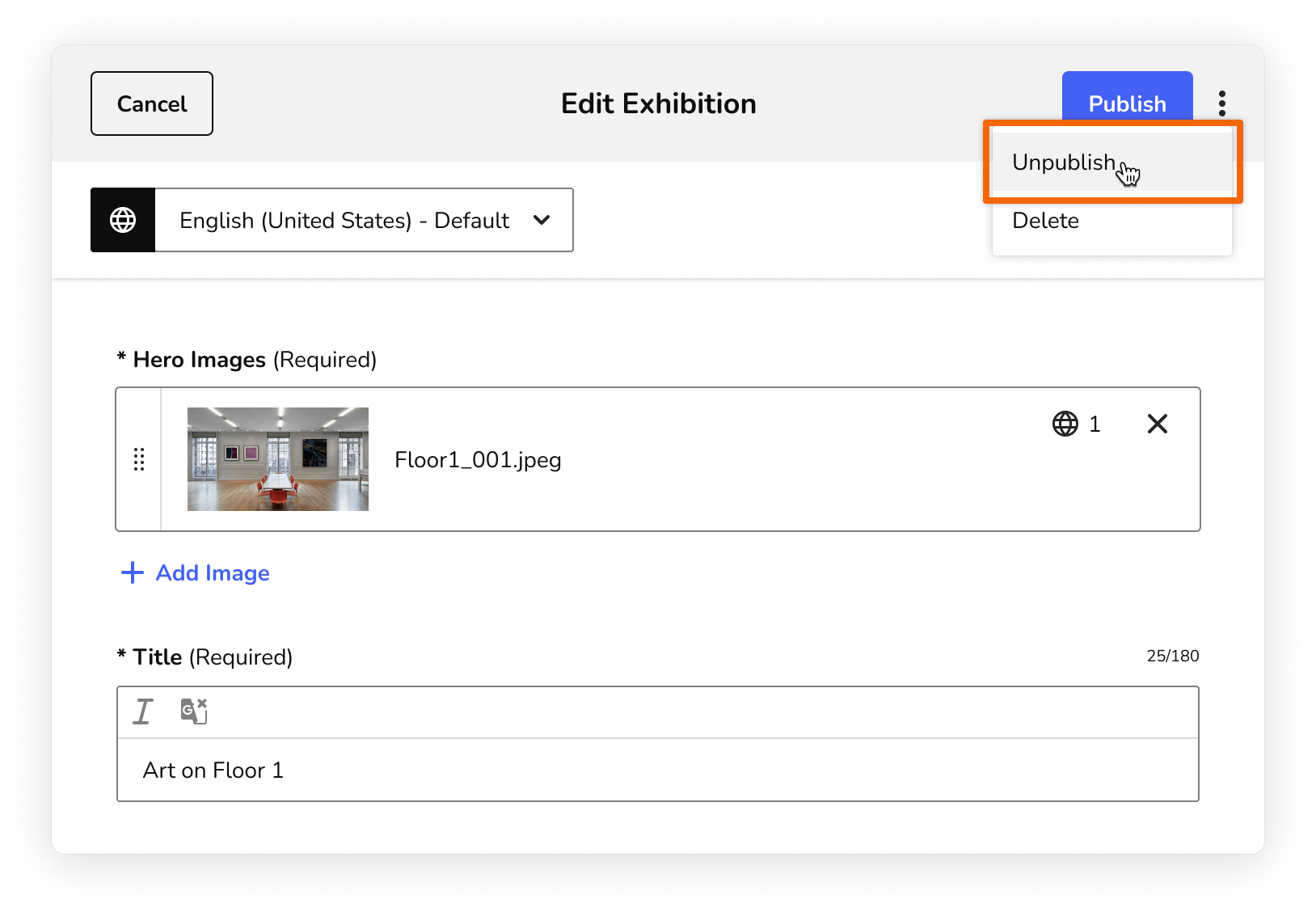
At the top of the content form, click the more actions menu (⫶), then select Unpublish.
-
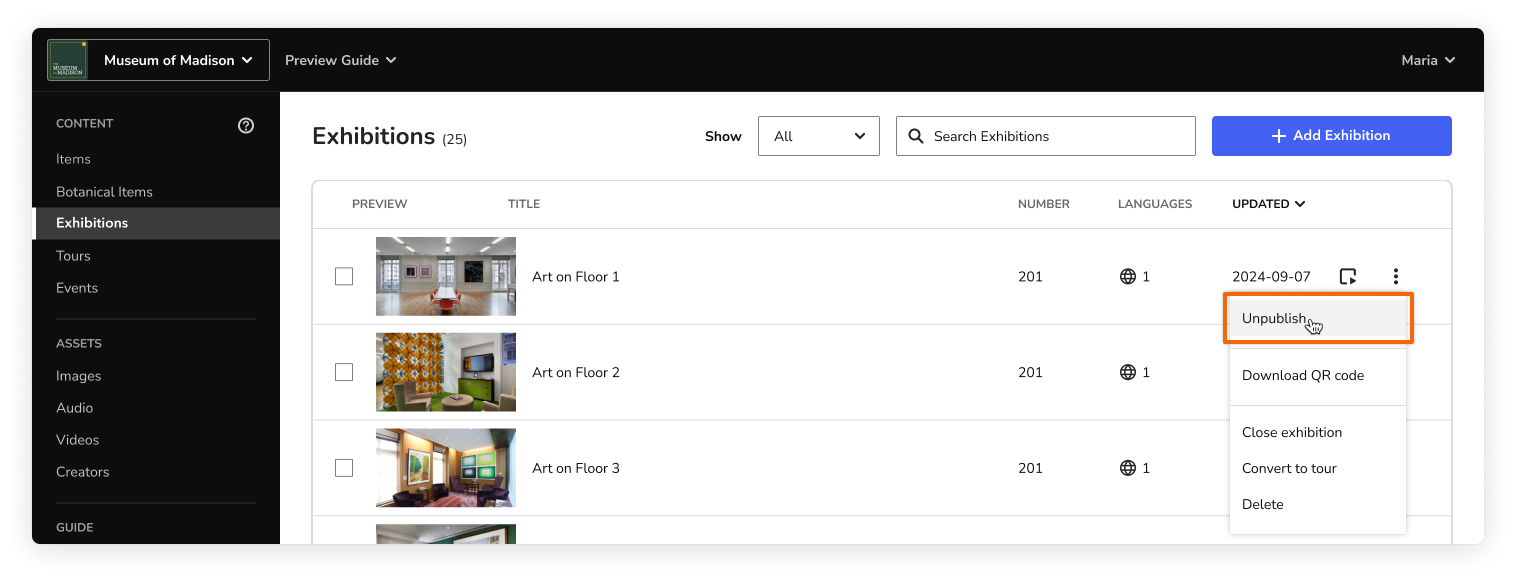
In your list of content, click the more actions menu (⫶), then select Unpublish. You can also select every piece of content that you want to unpublish, and then click Unpublish in the bulk actions menu.

- On the content form for Tours, Exhibitions, and Events, you can choose whether the content should be automatically unpublished at the end of the display period. For more, see Automatically unpublish old content.
The content is unpublished and becomes a draft. Throughout the CMS, a "draft" label appears below the content's title, so you know that visitors can't see it. You can edit and republish the content as needed.
Note: If the content was added to your home screen or map, unpublishing it does not remove the content from those sections of the CMS, it just hides the content from visitors.
Delete content
You can delete draft or published content to permanently remove it from your guide and CMS content library.
There are two ways to delete content:
-
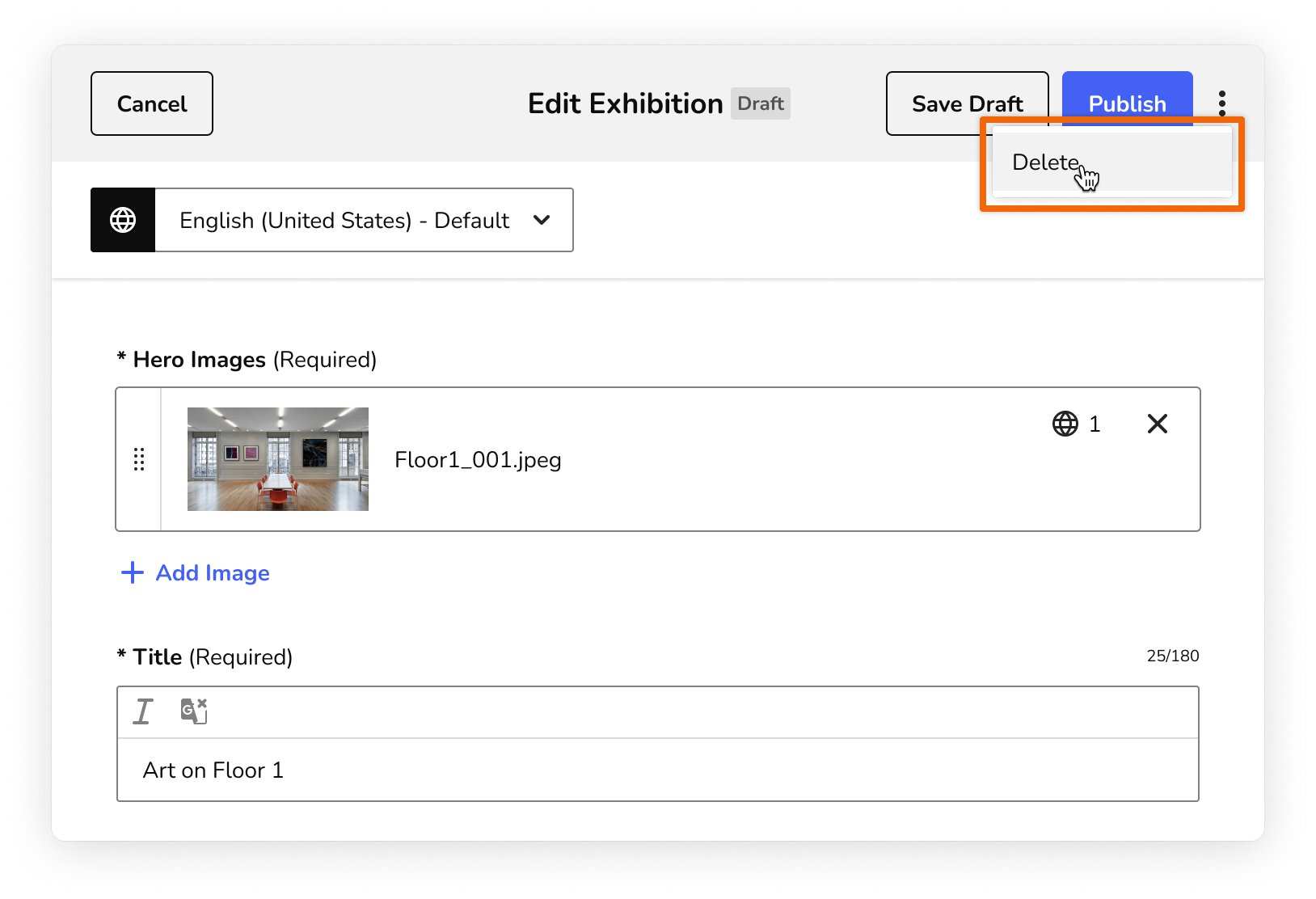
At the top of the content form, click the more actions menu (⫶) and select Delete. Then, confirm your action in the window that appears.
-
In the list of content, click the more actions menu (⫶), then select Delete.
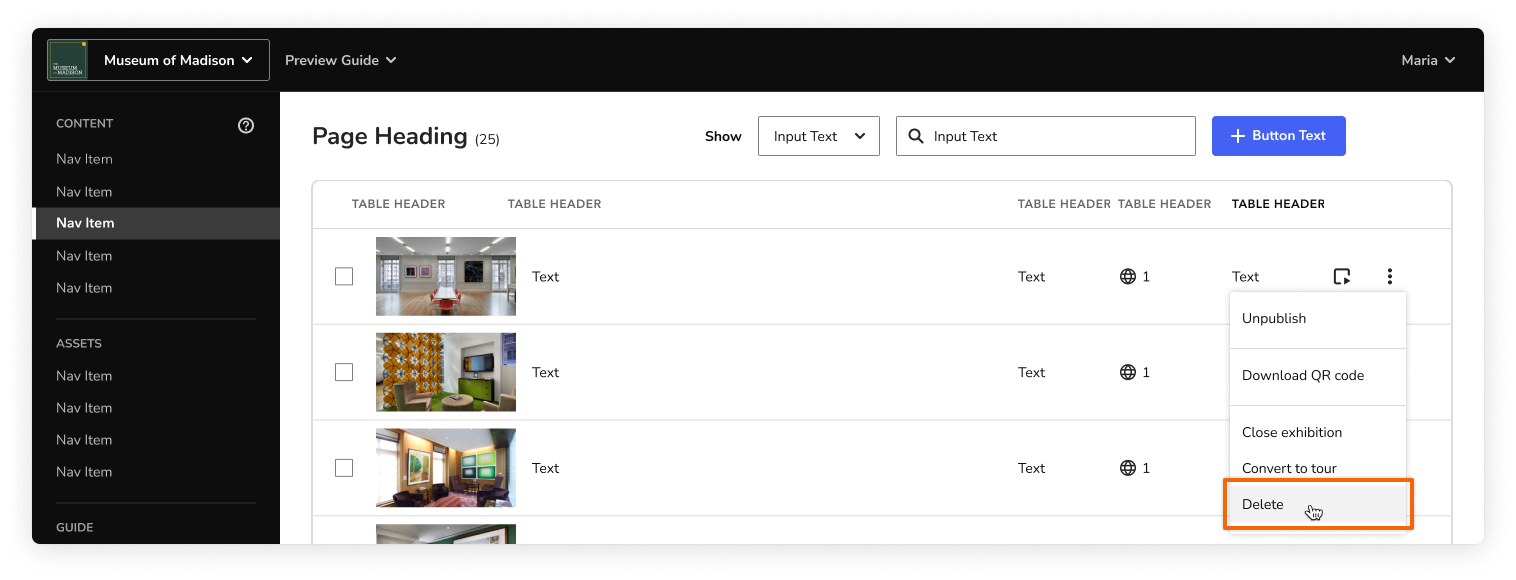
The content is deleted. It is permanently removed from the app and CMS.
Filter by content state
You can focus your work on in-progress content by filtering your content pages to show drafts only.
At the top of the content page, in the filter that appears next to the search bar, select Drafts.

The list is filtered. The filter resets to show all content when you click between content pages.
Content drafts during onboarding
Content drafts support flexible and dynamic work from day one.
Even though visitors won't see any of your content until you and your onboarding team are ready to add your guide to the Connects app, it's helpful to get in the habit of making big changes in a draft and then publishing content when it's in good shape.
During onboarding, publishing content signals to the CMS that the content is ready for a basic automated check for essential information. And, when you enter the content review and copyediting stages, your editing team will know to focus on published content.
When your guide is added to the app, visitors will be able to discover all published content through your home screen, map, lookup numbers/QR codes, and search.
FAQs
What does the "private" label next to my organization's name mean?

During onboarding, your guide is completely hidden from visitors. This label is a reminder that your content is only accessible to you and your colleagues, even after you begin publishing content. The "private" label disappears after you and your onboarding manager agree to add your guide to the app.
When I publish an Exhibition I see a confirmation message. What happens if I uncheck this box?
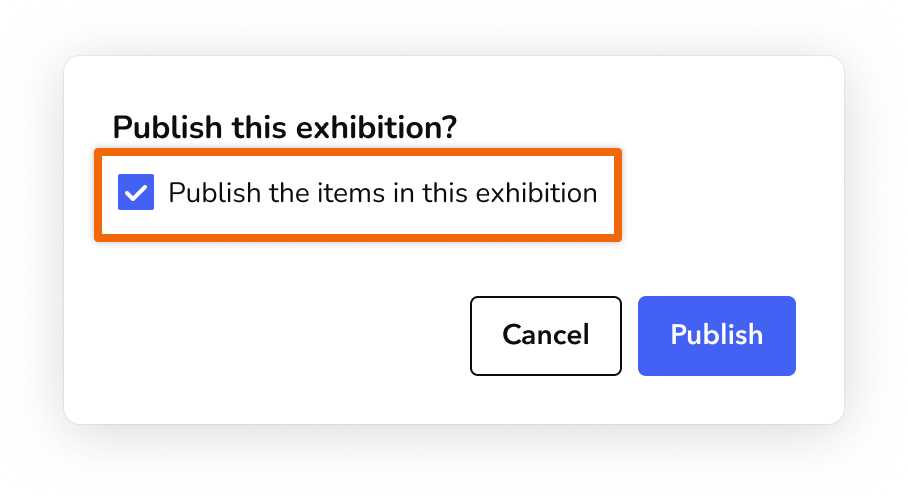
By default, when you publish or unpublish an Exhibition or Tour, we assume that you want to publish or unpublish all included Items as well.
Uncheck this box if you do not want to make any changes to the Items in the Exhibition; any Items that are saved as drafts will remain as drafts.
Since all content is independent, you'll see a similar confirmation message when publishing or unpublishing any Exhibition or Tour. For example, you can publish an Exhibition without publishing all of its Items or unpublish a Tour without publishing all of its Items (stops).
Is draft content labelled as "draft" in the in-browser preview or app internal mode?
No, not yet. When you preview the internal version of your guide, draft content and published content appear together. When you preview the visitor version of your guide, only published content appears.
Content is labelled in the guide export.