
Add audio to the CMS
Audio complements your guide's other offerings and enriches your visitors' experience. Audio files in your CMS asset library only appear in your guide after you attach them to a piece of content, like an Item or Exhibition.
For inspiration for how to use audio in your guide, see Audio tour concepts and inspiration.

Uploading tip: To speed up your audio file upload process, save all files to a single folder on your desktop or shared drive. You can upload in bulk by dragging and dropping files from the folder directly into the Audio page in the CMS—just remember to edit each audio record to add the title, description, and transcript.
Audio fields
- Audio File: Upload an audio file from your computer or create AI audio from a script. For more on supported files, see Asset guidelines.
- Title: The title that should appear in the audio player in the app. For more, see the audio title guidance below.
- Description: (Optional) A very brief summary of the content that encourages a visitor to play the clip. For more, see the audio description guidance below.
- Transcript: A text version of the content in an audio file. In the audio player, you can tap the Transcript button to read the transcript in a new screen in addition to or instead of listening to the audio. For more, see Audio transcripts.
- Allow use of this content on Bloomberg Connects digital channels: Indicate whether Bloomberg Connects can use this audio clip on social media channels. Posts will be shared with you for awareness before going live and will be credited, where possible, based on information provided in the CMS. For more, see Social media.
Translation tip: Using the Language menu (at the top of the Audio form), you can add a translation, then upload translated audio files to the original audio asset. When the audio is attached to an Item, the app displays the correct language for your visitors.
Audio display in the app
What you see in the Audio form matches what you see in the app.
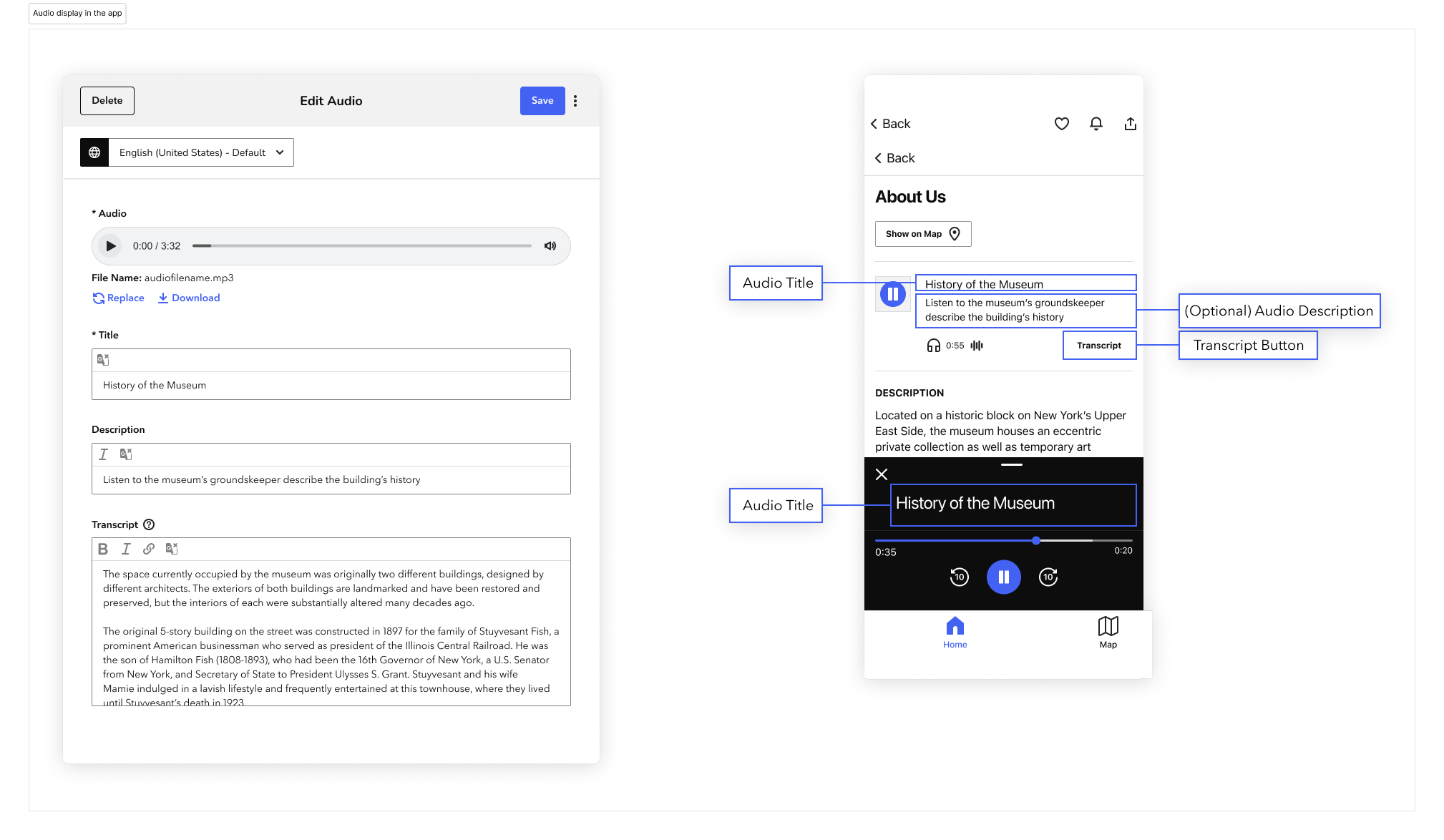
- The audio title appears everywhere you can play the clip: at the top of a content screen, in the audio player at the bottom of the app, and on your device’s lock screen.
- Your custom audio description appears at the top of a content screen, under the audio title. The description should encourage visitors to play the clip by providing a concise teaser or introduction.
- When you leave the Description field blank in the CMS, a description does not appear in the app at all.
Content recommendations
Audio title
An effective audio title, along with its description, orients the listener by naming what (or whom) the clip centers and signaling why it matters. The title should be clear, be specific, and identify the core subject of the clip (person, artwork, place, concept, or event).
Guidance
- 60 characters or fewer
- Name the general subject that the speaker is addressing
- Avoid repeating the Item title
- In certain instances, it can be acceptable to repeat an object title or proper name in the headline, but you should do so selectively and with good reason, not as a default.
- Use varied language
- Avoid repeating the Item title
- Use specific language, avoid vague terms, and favor precise nouns and actions
- If the audio file provides the same information as the content's text description, make that fact clear with a title like "Description (audio version)."
Examples
- Item title: Conservation
- Good audio title: Behind the Scenes of Conserving Artworks
- Less great: Conserving Artworks
- Item title: Gandhi’s Legacy
- Good audio title: Reflecting on Violence, Truth, and Gandhi’s Legacy
- Less great: Gandhi’s Legacy
- Item title: Cooper Gallery
- Good audio title: Explore the Cooper Gallery with insights from curator Paula Smith
- Less great: Learn about the Cooper Gallery
Audio description
An audio description gives you the opportunity to add narrative context and draw the listener in.
Consider how you can include descriptions strategically for maximum impact. For example, you might not need a description if the audio is attached to an Item used in a Tour (because the context is obvious), if the audio's title is very descriptive, or if the audio supports an Item with a detailed description. On the other hand, you should include a description if the audio is attached to an Item that doesn't have its own description.
Guidance
- 200 characters or fewer
- Briefly describe the subject of the audio clip, including more/different detail than the title
- Use specific phrasing that hints at what the listener will learn
- Avoid directives like “Listen to…” or “Hear about…” Instead, use active language to give a sense of exploration:
- [Speaker] reflects on…
- Discover how [the artist]…
- Instead of summarizing, pull a “nugget” from the audio: an insight or anecdote that gives a sense of what the listener will hear
- Focus on giving your audience meaningful information and opportunities to engage rather than filling the space
Examples
- Item title: Famous First, The Moon, 1969
- Audio title: Neil Armstrong walking on the Moon
- Audio description: Listen to the original audio of Neil Armstrong as he steps from the lunar module onto the surface of the moon.
- Item title: Portrait of George Nakashima
- Audio title: George Nakashima’s great-grandson, Toshi, talks about this painting of his grandfather.
- Audio description: [not needed]
- Item title: Three Vessels
- Audio title: Executive Director Anne Corso on Toshiko Takaezo’s ceramic vessels.
- Audio description: [not needed]